Extract Pages Online
Use UPBIP Extract Pages to pull specific pages out of a pdf in your browser. Upload documents, adjust the workflow if needed, and finish the task in a cleaner PDF workspace.
Select a file
Upload your file, use UPBIP Extract Pages, and download the finished result when the task is complete.

Do you work with forms, reports, contracts, submissions, or client files across teams?
UPBIP Extract Pages helps you handle PDFs in a cleaner browser workflow so documents are easier to prepare, share, review, and move through everyday admin, client, school, and operations work.
Explore UPBIPWho uses Extract Pages
UPBIP Extract Pages is useful for people working across the United States, United Kingdom, Canada, Germany, Japan, Australia, South Africa, Brazil, and the United Arab Emirates.
Sharing specific sections of a report
Pull out the executive summary, a single chapter, or the appendix from a long PDF and share just the relevant section without sending the whole document.
Preparing submission documents
Many online portals and application forms require individual pages or specific attachments. Extract exactly what is needed from a larger file before uploading.
Separating scanned files
When a scanner produces a combined PDF of multiple documents, extract each document's pages separately so each one can be archived, renamed, or shared on its own.
Academic and research workflows
Students and researchers pull specific chapters, data tables, or reading selections from textbooks and papers to annotate, share with study groups, or review independently.
Useful across countries
UPBIP Extract Pages fits everyday document work for teams in the United States, United Kingdom, Canada, Germany, Australia, Japan, Brazil, South Africa, and the United Arab Emirates.
Built for real document flow
People use UPBIP Extract Pages for contracts, reports, application files, admin paperwork, client documents, school submissions, and operational PDFs where speed and clarity matter.
Works with the rest of UPBIP
Extract Pages sits inside a wider PDF workflow so teams can keep moving into other UPBIP document tools when the file needs more work.
Browser-based
Use it on Mac, Windows, iPhone, Android, and modern browsers without installing desktop PDF software.
Start in seconds
Upload documents, use the tool, and move the result forward without a long setup or account wall.
Private & practical
Your files stay in a simpler browser workflow so document handling feels faster and easier to control.
About UPBIP
Why choose UPBIP for extract pages, document workflow, and browser-based PDF work
UPBIP is building a stronger browser workspace for teams that work with documents every day. Instead of leaving Extract Pages as a thin file utility, we shape it into a cleaner page with better context, related tools, richer export HTML, and a workflow that feels more complete for real document handling.
That matters whether you are preparing forms in the United States, reviewing reports in the United Kingdom, submitting coursework in Canada, handling supplier files in India, organizing internal records in Germany, or sharing documents across Australia and South Africa.
Why teams stay
Built for everyday document work
UPBIP Extract Pages is designed for real file flow, not just one isolated action. You can handle documents faster and keep related steps closer together.
Global-first browser workflow
Teams across countries can use the same browser-based document tools without installing heavy desktop PDF software on every machine.
Fast enough to use daily
Open the page, upload a file, and keep moving quickly. That makes UPBIP practical for everyday client, admin, school, and operational document tasks.
Part of a wider UPBIP system
Extract Pages connects naturally with the wider UPBIP PDF workflow so files can keep moving into related document tools when needed.
How to use UPBIP
A cleaner way to use extract pages in a browser-based workflow
The goal is not only to complete the task. It is to help you move faster through the work around it too.
Upload the PDF you want to extract pages from
Select your PDF from your device. The tool renders each page as a thumbnail so you can see exactly what is in the document before choosing pages.
Select the pages to extract
Click individual page thumbnails to mark them, or type a page range directly — for example 1, 3-5, 8. Selected pages are highlighted so you can review your choice before proceeding.
Extract the selected pages
Click Extract Pages. The tool builds a new PDF containing only your chosen pages entirely in your browser — no upload, no server, no waiting.
Download the extracted PDF
Download your new PDF immediately. It contains only the pages you selected, ready to share, attach, archive, or continue editing.
Why extract pages matters in real document workflows
A PDF tool often sounds simple until you look at how often document handling affects business, school, admin, and client work. Extract Pages matters because files move through approvals, submissions, sharing, archive steps, and operational workflows every day. A better browser-based document tool removes friction from those repeated tasks.
That is why UPBIP treats Extract Pages as part of a wider document workflow rather than as a thin isolated action. A stronger page should help people use the tool immediately, explain where it fits, and make the next step obvious once the file is ready.
This matters even more when teams work across countries or departments. A document task that saves only a little time once becomes more valuable when it is repeated across contracts, reports, applications, onboarding packs, invoices, policies, or customer files.
How UPBIP Extract Pages supports client files, records, submissions, and shared PDF operations
UPBIP Extract Pages is useful because it fits ordinary browser-based document work. One person may need it for a client handoff, another for a school submission, another for supplier paperwork, and another for internal record handling. The tool becomes stronger when the surrounding page also explains the workflow, related use cases, and next-step tools clearly.
That is where the wider UPBIP structure helps. One file may begin in Extract Pages, then continue into another PDF tool before it is ready for archive, review, or sharing. When document tools feel connected, the workflow feels more dependable and easier to repeat.
A better landing-page structure also improves trust. Instead of showing only a tool surface, the page can show who uses it, why it matters, what kinds of files it supports, and which related tools belong in the same flow. That makes the document page feel more complete from the first visit.
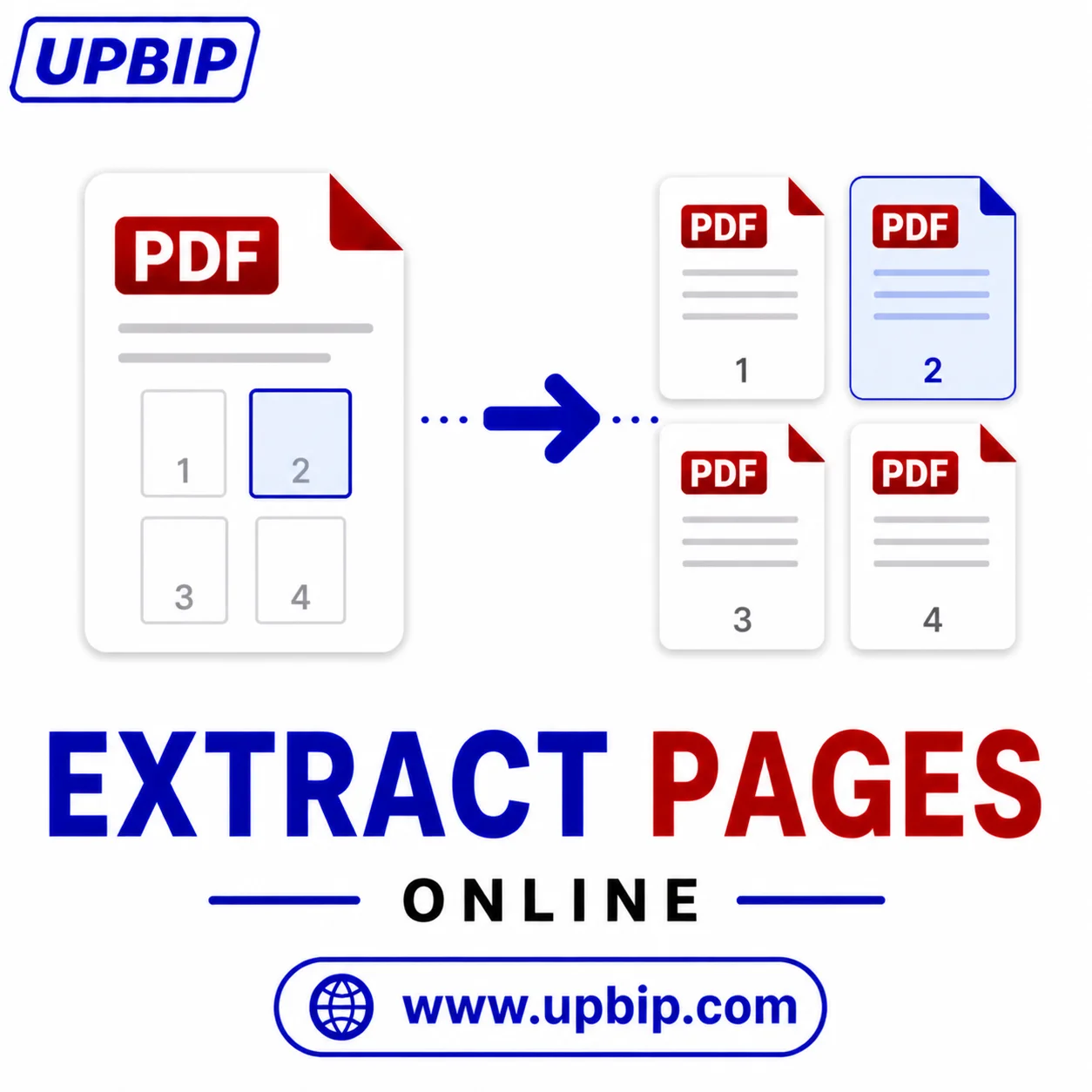
UPBIP Tool Spotlight
Get exactly the pages you need.
Don't send the whole document when one section is all they need. UPBIP Extract Pages lets you pick specific pages from any PDF and download them as a clean new file — entirely in your browser, nothing uploaded to any server.
Extract PDF pages now →FAQ
Common questions
How do I extract pages from a PDF?+
Upload your PDF, select the pages you want to keep by clicking them or entering page numbers, then click Extract Pages to download a new PDF containing only those pages.
Can I extract multiple pages at once?+
Yes. You can select multiple individual pages or enter a range like 2-5 to extract several pages in one go. The result is packaged into a single PDF or ZIP depending on your selection.
What is the difference between Extract Pages and Split PDF?+
Extract Pages lets you pick specific pages and save them as one output file. Split PDF breaks a document into multiple separate files. Use Extract Pages when you need a single output with selected pages, and Split PDF when you need each page or range saved separately.
Is my PDF uploaded to a server?+
No. UPBIP Extract Pages runs entirely in your browser. Your PDF is never sent to any server or seen by anyone else.
Does Extract Pages work on iPhone and Android?+
Yes. UPBIP Extract Pages works on any modern browser including Safari on iPhone, Chrome on Android, and desktop browsers on Mac and Windows.
What file size does Extract Pages support?+
The tool handles most standard PDF sizes. Very large files with many high-resolution pages may take a moment to render thumbnails, but the extraction itself is fast.
More from UPBIP — Continue your document workflow