Organize PDF Pages Online
Reorder, remove, and rearrange pages in any PDF. Upload, drag to organize, and download your cleaned-up document in seconds.
Select a PDF to organize
Upload a PDF, drag pages into the right order, remove any you do not need, and download the result.

Put every page exactly where it belongs
Whether you are cleaning up a scanned document, restructuring a report, or finalizing a submission — UPBIP Organize PDF gives you full visual control over every page in your document.
Explore all PDF toolsWho uses Organize PDF
Fixing scanned document page order
When scanning multi-page documents in batches, pages often come out in the wrong sequence. Organize PDF lets you drag each scanned page into the correct position and export a clean, ordered copy.
Preparing reports and proposals
Executives, consultants, and account managers use Organize PDF to restructure reports — moving the executive summary to the front, reordering appendices, and removing internal draft pages before client delivery.
Cleaning up merged documents
After combining multiple PDFs with Merge PDF, some pages may be redundant or out of place. Organize PDF is the natural next step — reorder, trim, and finalize the merged document in one pass.
Academic and legal submissions
Students, paralegals, and researchers use Organize PDF to structure dissertations, case bundles, and exhibit packets — putting cover pages, indexes, chapters, and citations in the exact order required by submission guidelines.
Visual page control
See every page as a thumbnail. Drag, reorder, and remove with a clear view of the full document.
Nothing is permanent
Removed pages can be restored before saving. Experiment freely — your original file is never changed.
Private & browser-based
All processing happens in your browser. Your PDF is never uploaded to any server.
UPBIP Tool Spotlight
Every page, exactly where it belongs.
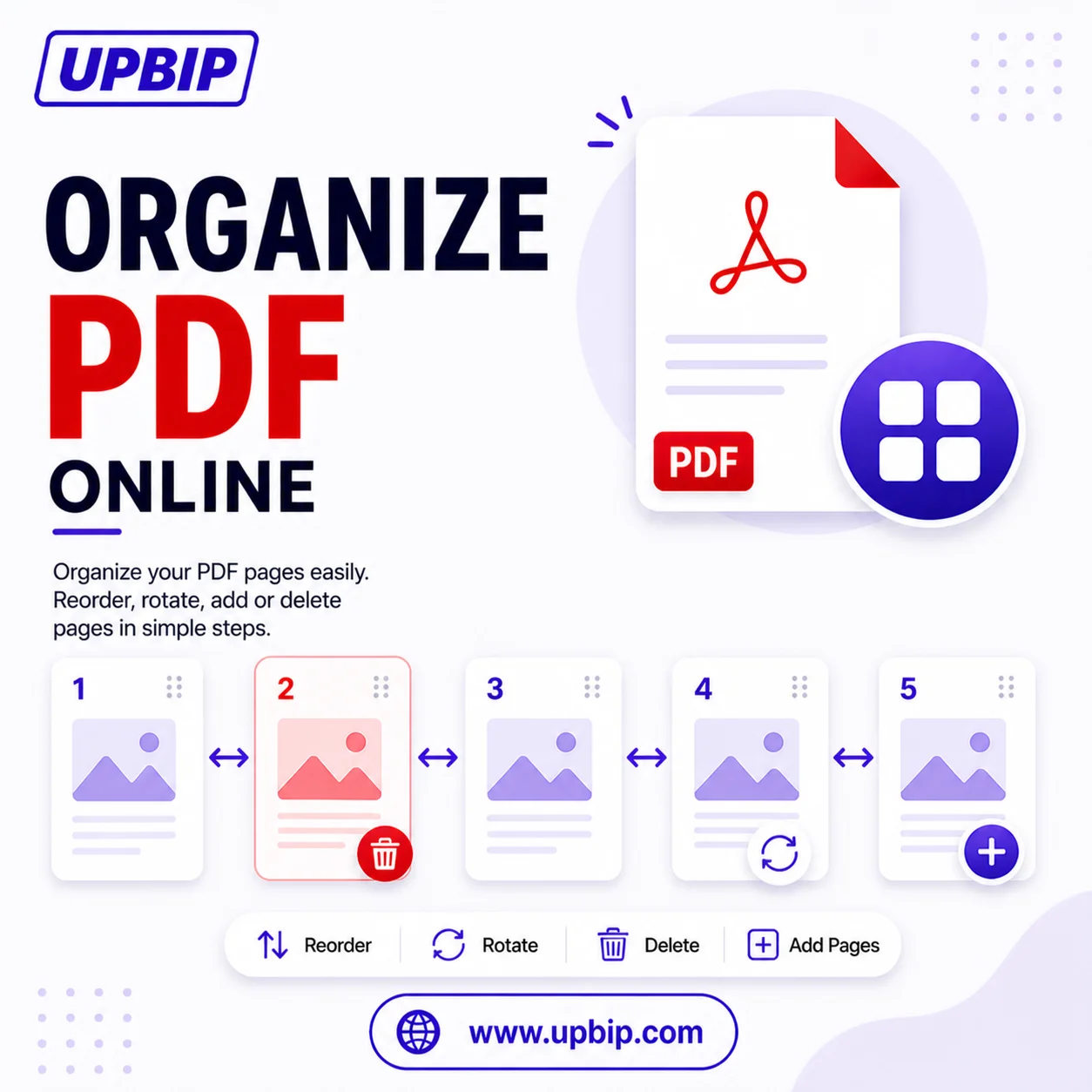
UPBIP Organize PDF gives you full control over your document — reorder pages by dragging, rotate any page, delete what you don't need, and add new pages, all in one place. No desktop software, no upload limits, nothing stored on a server.
Organize a PDF now →FAQ
Common questions
How do I reorganize pages in a PDF online?+
Upload your PDF to UPBIP Organize PDF, then drag and drop the page thumbnails into the order you want. Once you are happy with the layout, click Save and download the reorganized PDF.
Can I remove pages while organizing?+
Yes. Each page thumbnail has a remove button. Click it to exclude that page from the output. Removed pages are hidden but can be restored before you download.
Does organizing a PDF change the content or quality of each page?+
No. UPBIP Organize PDF only changes the order and selection of pages. All original text, images, fonts, and formatting are preserved exactly as they appeared in the source file.
Can I organize a PDF on my phone or tablet?+
Yes. The tool is browser-based and works in modern mobile browsers on iPhone, iPad, and Android devices. Upload from your Files app or Downloads folder and organize pages with drag and drop.
Is there a page limit when organizing PDFs?+
There is no fixed page limit. The tool renders page thumbnails locally in your browser, so practical performance depends on your device memory. Most PDFs up to a few hundred pages work smoothly.
Do I need to install software to organize PDF pages?+
No. UPBIP Organize PDF runs entirely in your browser. There is nothing to install — it works on Mac, Windows, Chromebook, iPhone, and Android without any desktop software.
Can I use Organize PDF and Merge PDF together?+
Yes, and this is one of the most common workflows. First merge several PDFs into one file using UPBIP Merge PDF, then use Organize PDF to refine the page order and remove any unwanted pages from the combined document.
What happens to the original file when I organize a PDF?+
Your original file is never modified. UPBIP processes everything locally in your browser and creates a new reorganized PDF for download. The source file on your device stays exactly as it was.
Related Tools — Continue your workflow